
Biosignals Studio supports the open-source Lab Streaming Layer (LSL) for streaming sensor data to third-party software during signal acquisition.

In this article, you can learn how to activate the streaming feature and find links to additional resources.
What is LSL?
As stated on the official LSL website:
LSL is an open-source networked middleware ecosystem to stream, receive, synchronize, and record neural, physiological, and behavioral data streams acquired from diverse sensor hardware.
Using Biosignals Studio, this feature offers the convenience of setting up your devices and controlling your signal acquisition using the Biosignals Studio UI interface while streaming the acquired sensor data during the acquisition via LSL to third-party software, for example, for processing the signals outside of OpenSignals.
In addition to this convenience, it requires no programming skills when connected to third-party software with LSL support, and it is an easy-to-implement alternative to our developer tools when developing your own software.
Biosignals Studio only supports streaming the acquired sensor data to third-party software but cannot accept data streams from third-party software.
What you’ll need
To use test and use Lab Streaming Layer (LSL) you’ll need the following hardware and software:
- 1 (or more) PLUX system(s) (biosignalsplux + sensors, Biosignals PRO + sensors, or BLE wearables)
- Biosignals Studio (Windows)
- LSL compatible third-party systems of your choice
Testing your network first:
If this is your first time using LSL, or the first time on this particular network, we recommend verifying your setup with the official LSL tools before connecting your third-party application:
- LabRecorder — receives and saves LSL streams to an .xdf file
To visually inspect the recorded signals, open the .xdf file in SigViewer, a free open-source signal viewer with native XDF support.
See more info in the “How do I test my LSL connection?” section of this article.
How do I activate the LSL streaming?
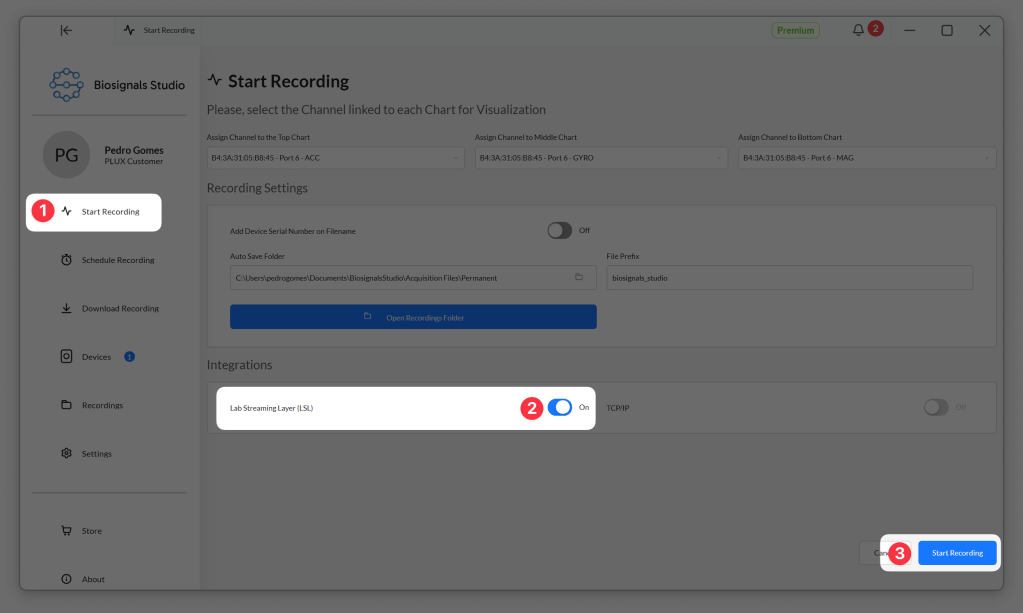
Enter the Biosignals Studio recording mode by selecting Start Recording in the sidebar menu (1). In the pre-recording screen, activate Lab Streaming layer (LSL) (2) and start the recording (3).
When using the Lab Streaming Layer (LSL) feature for the first time, you’ll be prompted to confirm network access to stream sensor data over your network. Click Allow to proceed.
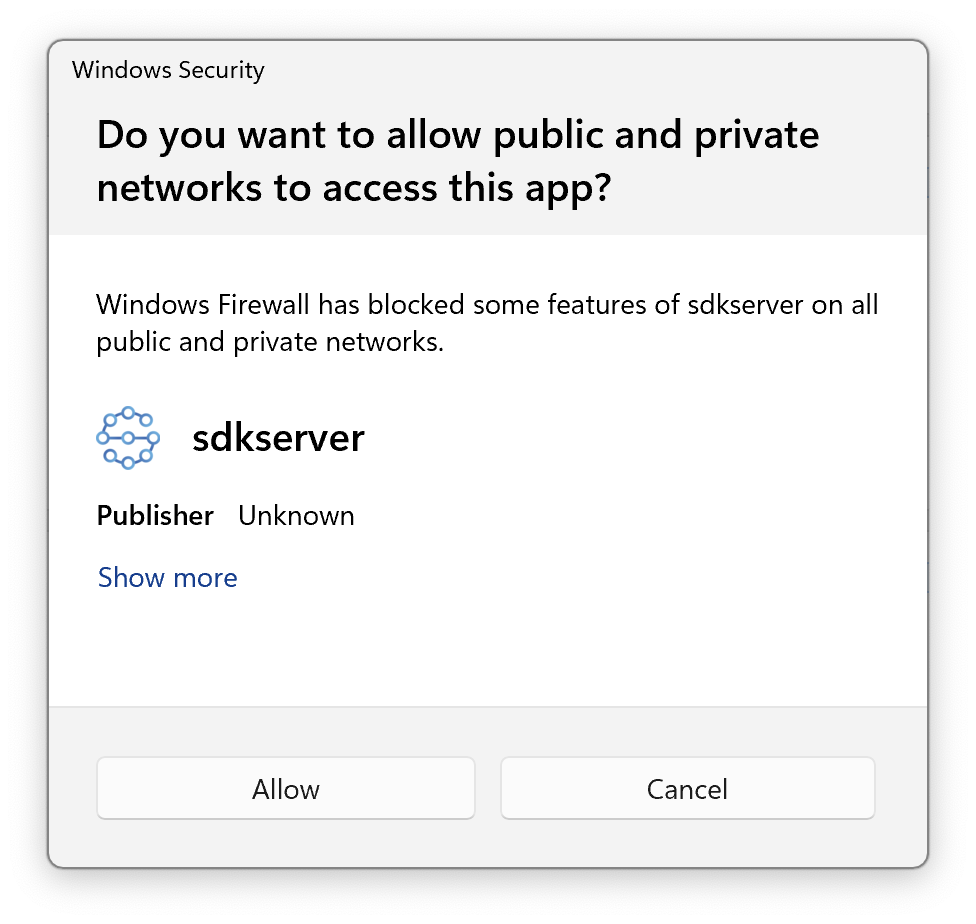
Note: This pop-up appears only once, and restarting Biosignals Studio will not make it reappear. If you reject the request, see further information to reactivate the access for this feature in the troubleshooting section below.
Your sensor data is now streamed through Lab Streaming Layer (LSL) While your sensor data is being recorded and visualized in Biosignals Studio.
How do I test my LSL connection?
Lab Streaming Layer (LSL) reliability can be impacted by your network configuration. If you are using your own local network, you should normally not experience limitations.
However, when connected to:
- University networks
- Corporate networks
- VPN connections
- Restricted Wi-Fi environments
Network policies may block or interfere with LSL discovery and communication.
Before you attempt to retrieve your LSL data using your own scripts, we strongly recommend testing the connection with the official LSL LabRecorder to identify any network limitations early on.
The LabRecorder is the default recording program that comes with LSL. It allows recording all streams on the lab network (or a subset) into a single file, with time synchronization between streams. You can download it here from the official release page:
https://github.com/labstreaminglayer/App-LabRecorder/releases
To test the stream:
- Start a recording in Biosignals Studio with LSL activated (see steps above).
- Open LabRecorder.
- Wait a few seconds for stream discovery
- Select a stream from the Record from Streams list
- Click the Start button
All the data will now be stored in a file in the path and with the characteristics listed on the right side of the LabRecorder.

To visualize the signals generated by the Lab Recorder.xdf files, we recommend using open-source tools like sigviewer.
How do I receive LSL streams in my code?
We provide example scripts for Python and MATLAB on our OpenSignals GitHub repository. While these examples are for OpenSignals, they act as a general guideline on how to set up your script in other programming languages to find Biosignals Studio streams.
We also recommend referring to the official Lab Streaming Layer GitHub repository for most up-to-date information about the LSL features, where you can also find general LSL sample scripts for the following programming languages:
Troubleshooting
I denied the Windows firewall popup by mistake
When using the Lab Streaming Layer (LSL) feature for the first time, you’ll be prompted to confirm network access to stream sensor data over your network.
Note that this pop-up appears only once, and restarting Biosignals Studio will not make it reappear.
If you reject this request by clicking on Cancel, the LSL feature will not be able to stream any data.
To fix this and enable network access, follow these steps:
Instructions
- Open the Windows Start menu.
- Search for and select
Allow an app through Windows Firewall - Click Change settings.
- Find the application sdkserver in the list.
- Enable the required network permissions:
- Private → Recommended for trusted local networks
- Public → Only enable if required
- Click OK to save the changes.
- Restart Biosignals Studio
Should these steps not resolve your issue, you can remove existing firewall rules for the Biosignals Studio sdkserver and let Windows ask again:
- Open the Windows Start menu
- Search for and select
Windows Defender Firewall with Advanced Security - Select:
- Inbound Rules
- Outbound Rules
- Find rules related to sdkserver application.
- Delete the existing rules.
- Restart Biosignals Studio.
Windows should display the firewall permission popup again the next time the application attempts network communication.
I can’t find my stream
This is usually caused by:
- Firewall restrictions
- VPN software
- Devices connected to different networks
- Restricted university or corporate network policies
Try:
- Allowing the applications through the firewall
- Disabling VPN connections temporarily
- Restarting both applications
- Connecting both devices to the same local network
My stream appears but no data is recorded
This can happen if:
- The stream stopped transmitting
- The source application disconnected
- The stream was selected before becoming active
Try:
- Restarting the stream source
- Re-selecting the stream in LabRecorder
- Starting the stream before opening LabRecorder
Can I manually select the LSL network port?
No. LSL automatically manages network communication and dynamically allocates ports through the operating system.
In most cases, manual port selection is neither required nor supported.
Can I view previously detected streams?
LabRecorder only shows currently available active streams.
If a stream disappears:
- Verify that the source application is still running
- Confirm the devices remain connected to the same network
- Restart LabRecorder if needed
