
Biosignals Studio (Desktop) offers a Signal Processing Toolbox in post-processing mode that allows you to build, save, and share your own signal processing profiles.
Here you’ll find all available filters, how to create your own Filter Profiles, and how to apply them to your signals.
In this article, you’ll learn how to get the most out of the Signal Processing Toolbox.
Paid Feature
This feature is available with Biosignals Studio (Desktop) Academic & Commercial licenses and is not included in the free version of Biosignals Studio.
Learn more about the Biosignals Studio Academic License
How to access the Toolbox
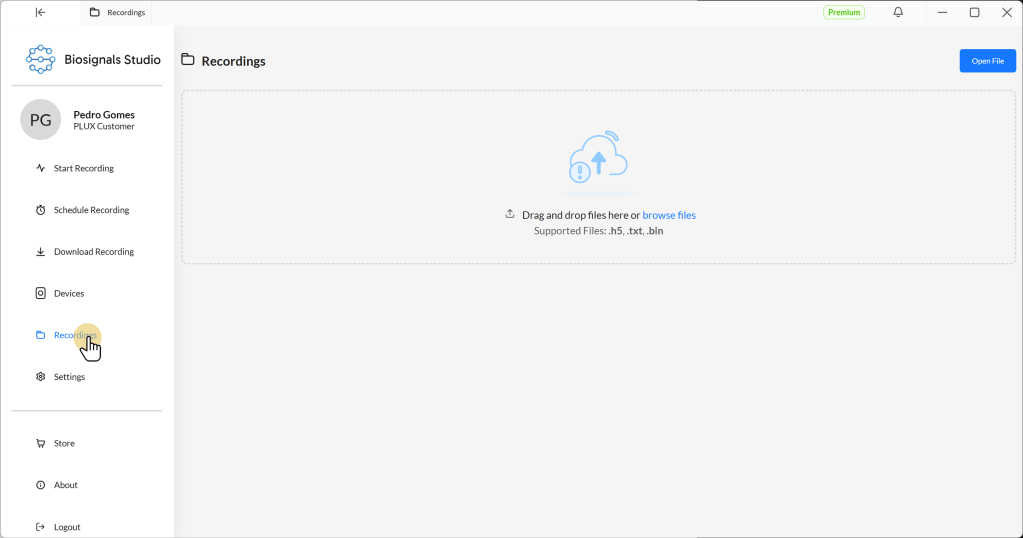
Go to Recordings and open your recording file using one of the following methods:
- Use the file browser through the Open File dialog
- Drag and drop the file into the recordings window
- Select a recording from the Recent Recordings list (if available)
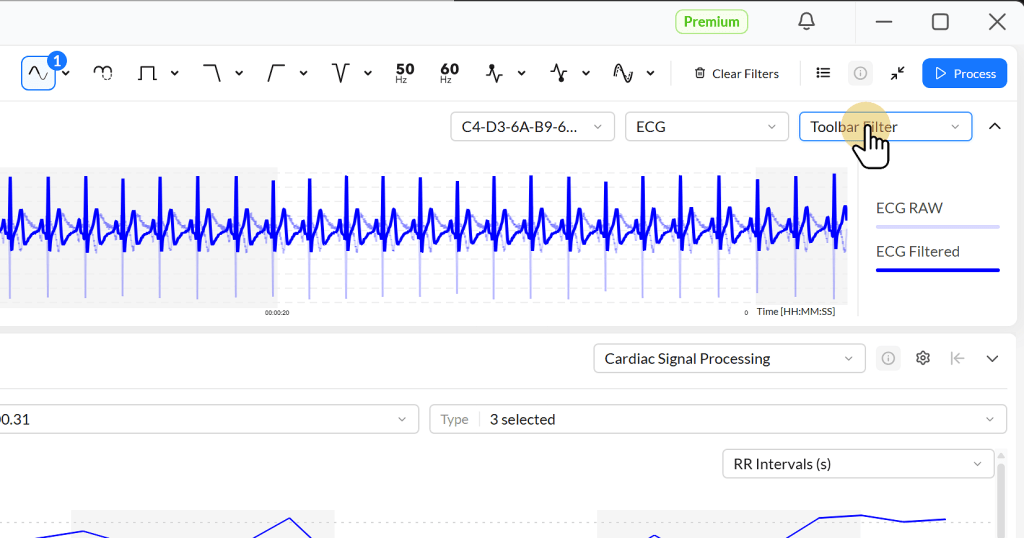
Select the signal you want to process and click Process.

Open the Toolbar Filter dropdown in the top-right corner of the processing screen.
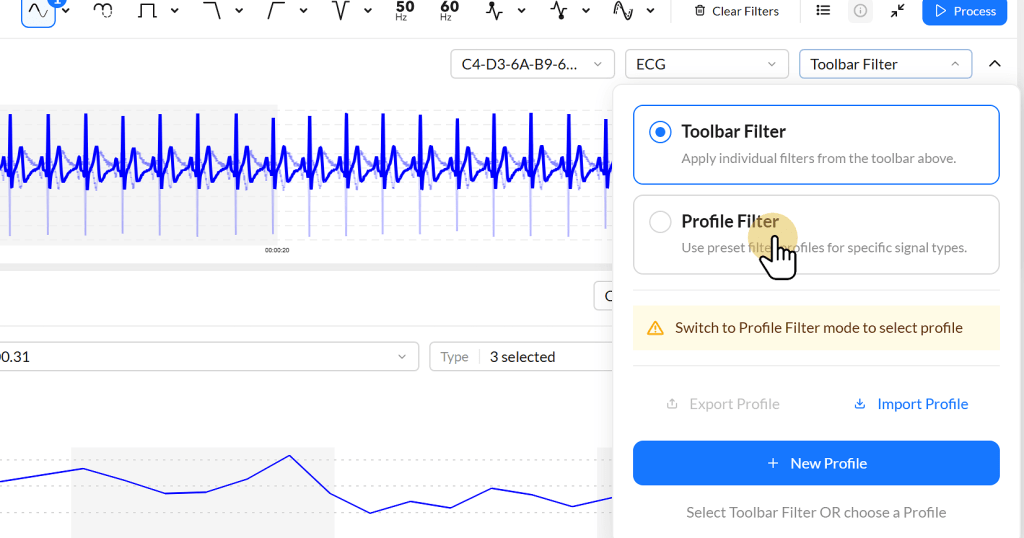
Switch from Toolbar Filter to Profile Filter.
Processing Context
The Signal Processing Toolbox is the second stage of the Biosignals Studio Signal Processing Pipeline, after the Signal Processing Toolbar, and operates in the following context:
- The input data can be:
- Sensor signals already processed with Toolbar filters, if the Toolbar was used.
- Raw or sensor pre-processed signals, if the Toolbar was not used.
- Toolbox filters are applied only to the selected signals.
- Filters can be applied to specific signal segments or to the entire signal (if the full signal is selected).
- Filter Profiles are signal-type specific. For example, an ECG profile can only be applied to ECG signals.
- The processed output signals generated by the Toolbox can be used as input for the Processing Modules later in the pipeline.
Filter Profiles
Filter Profiles are reusable collections of Toolbox filter settings that can be saved and applied to signals of the same type.
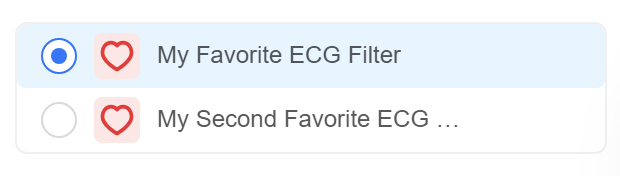
They let you quickly repeat a signal processing workflow without manually reconfiguring each filter.
Example
An ECG Filter Profile may combine smoothing, filtering, and peak detection settings optimized for ECG analysis.
You can create different profiles for different processing goals.
Example
ECG Profile A → Apply more aggressive filtering to reduce motion artifacts
ECG Profile B → Perform only light signal cleanup to preserve more signal detail
You can apply these profiles to different segments of the same recording, depending on signal quality or analysis requirements, or to the entire recording. Select the segment you want to process using the overview window at the bottom of the screen.

Unlike Signal Processing Toolbar settings, Filter Profiles are available for all recordings once saved and can be reused right away.
However, profiles are signal-type specific and can only be applied to compatible signals. For example, EMG profiles will not appear as available options for ECG signals.
Available Filters
Basic Filters
Basic filters directly transform the signal’s amplitude or structure. They are commonly used as the first processing step to prepare signals for further analysis, for example through rectification, normalization, interpolation, or baseline correction.
| Filter | Description & Inputs |
|---|---|
| Cubic Interpolation | Upsamples the signal using cubic spline interpolation to generate smoother transitions between samples. [Input Parameters] Target Frequency Defines the new sampling frequency of the interpolated signal. Higher frequencies produce denser signals with more interpolated samples. |
| Transform | Multiplies the signal by a constant factor to amplify or attenuate its amplitude. [Input Parameters] Transform Constant (K) Values greater than 1 amplify the signal; values between 0 and 1 attenuate it. |
| Invert | Flips the signal vertically by multiplying all values by -1. |
| Full Wave Rectification | Converts all negative signal values into positive values using the absolute value of the signal. |
| Half Wave Rectification | Sets all negative values to zero while preserving positive values. |
| Normalize | Scales the signal relative to its maximum amplitude. |
| Binary | Converts the signal into binary states based on a threshold. [Input Parameters] Threshold Values above the threshold are converted to 1; values below are converted to 0. Higher thresholds detect only stronger activations. |
| Detrend | Removes slow-changing trends or baseline drift from the signal. [Input Parameters] Detrend Type Select linear or constant detrending, depending on the type of baseline drift to remove. |
Smoothing Filters
Smoothing filters reduce short-term fluctuations and noise to create cleaner, more stable signals. They are commonly used to generate signal envelopes, reduce motion artifacts, and prepare signals for further analysis.
| Filter | Description & Inputs |
|---|---|
| Moving Average (MA) | Reduces short-term fluctuations by averaging neighboring samples over a moving window. [Input Parameters] Window Size (ms) Larger windows create smoother signals but may remove fast variations; smaller windows preserve more detail. |
| Moving RMS | Calculates the moving root-mean-square value to smooth and emphasize signal energy, commonly used in EMG processing. [Input Parameters] Window Size (ms) Larger windows produce smoother envelopes; smaller windows retain faster changes and transient activity. |
Peak & Valley Detection
Peak and valley detection filters identify local maxima and minima within the signal waveform. They are commonly used for event detection, onset analysis, repetition counting, heartbeat detection, and feature extraction.
| Filter | Description & Inputs |
|---|---|
| Peak Detection | Detects local signal peaks for onset or event identification. [Input Parameters] Minimum Peak Amplitude Higher thresholds ignore smaller peaks; lower thresholds detect more peaks, including noise. Minimum Interval Between Peaks Larger intervals reduce repeated detections of the same event; smaller intervals allow closely spaced peaks. |
| Valley Detection | Detects local signal valleys for event identification and waveform analysis. [Input Parameters] Minimum Valley Amplitude Higher thresholds ignore smaller valleys; lower thresholds detect more valleys, including noise. Minimum Interval Between Valleys Larger intervals reduce repeated detections of the same event; smaller intervals allow closely spaced valleys. |
Finite Impulse Response (FIR) Frequency Filters
FIR (Finite Impulse Response) filters modify the frequency content of the signal using stable, linear-phase filtering. They are commonly used to remove unwanted frequency components, such as baseline drift, high-frequency noise, or powerline interference, while preserving the waveform shape.
💡 Tip: When to use FIR filters
Use FIR filters when preserving the original waveform shape is important.
FIR filters introduce minimal phase distortion, making them well suited for biosignals where waveform morphology matters, such as ECG, EEG, or respiration analysis. Because they need higher filter orders than IIR filters for similarly steep filtering, they are best suited for shorter recordings.
| Filter | Description & Inputs |
|---|---|
| FIR Low-Pass Filter | Removes high-frequency components while preserving slower signal variations. [Input Parameters] Window Type Select the FIR window function used to design the filter (Blackman, Hamming, or Hann). Cut-Off Frequency Frequencies above this value are suppressed. Filter Order Higher orders create steeper filter transitions. |
| FIR High-Pass Filter | Removes low-frequency drift while preserving faster signal changes. [Input Parameters] Window Type Select the FIR window function used to design the filter (Blackman, Hamming, or Hann). Cut-Off Frequency Frequencies below this value are suppressed. Filter Order Higher orders create steeper filter transitions. |
| FIR Notch Filter | Removes a narrow frequency band, commonly used to suppress powerline noise. [Input Parameters] Cut-Off Frequency Defines the frequency to suppress. Quality Factor (Q) Higher Q removes a narrower frequency band; lower Q removes a wider band around the target frequency. |
| FIR Band-Pass Filter | Preserves only frequencies within a selected frequency range. [Input Parameters] Window Type Select the FIR window function used to design the filter (Blackman, Hamming, or Hann). Low Cut-Off Frequency Lower limit of the preserved range. Frequencies below this value are suppressed. High Cut-Off Frequency Upper limit of the preserved range. Frequencies above this value are suppressed. Filter Order Higher orders create steeper filter transitions. |
| FIR Band-Stop Filter | Removes frequencies within a selected frequency range while preserving frequencies outside that range. [Input Parameters] Window Type Select the FIR window function used to design the filter (Blackman, Hamming, or Hann). Low Cut-Off Frequency Lower limit of the rejected range. Frequencies between the low and high cut-off are suppressed. High Cut-Off Frequency Upper limit of the rejected range. Filter Order Higher orders create steeper filter transitions and sharper rejection of the selected frequency band. |
Infinite Impulse Response (IIR) Frequency Filters
IIR (Infinite Impulse Response) filters use Butterworth designs, which are widely used in biosignal processing due to their smooth frequency response and efficient filtering performance.
Butterworth filters are especially popular for ECG, EMG, EEG, and respiration processing because they provide strong noise reduction without introducing abrupt changes in the signal response.
Compared to FIR filters, IIR Butterworth filters achieve sharper filtering with lower filter orders, making them computationally efficient even for large recordings. They are commonly used for low-pass, high-pass, band-pass, and notch filtering.
💡 Tip: When to use IIR filters
Use IIR filters when stronger filtering and faster processing are more important than perfect waveform preservation.
IIR filters achieve sharp filtering with lower filter orders and are useful for quickly removing noise or drift from large recordings.
| Filter | Description & Inputs |
|---|---|
| IIR Low-Pass (Butterworth) | Removes high-frequency components while preserving slower signal variations. [Input Parameters] Cut-Off Frequency Frequencies above this value are suppressed. Filter Order Higher orders create steeper filter transitions. |
| IIR High-Pass (Butterworth) | Removes low-frequency drift while preserving faster signal changes. [Input Parameters] Cut-Off Frequency Frequencies below this value are suppressed. Filter Order Higher orders create steeper filter transitions. |
| IIR Band-Pass (Butterworth) | Preserves only frequencies within a selected frequency range. [Input Parameters] Low Cut-Off Frequency Lower limit of the preserved range. Frequencies below this value are suppressed. High Cut-Off Frequency Upper limit of the preserved range. Frequencies above this value are suppressed. Filter Order Higher orders create steeper filter transitions. |
| IIR Notch (Butterworth) | Removes frequencies within a selected frequency range while preserving frequencies outside that range. [Input Parameters] Low Cut-Off Frequency Lower limit of the rejected range. Frequencies between the low and high cut-off are suppressed. High Cut-Off Frequency Upper limit of the rejected range. Filter Order Higher orders create steeper filter transitions and sharper rejection of the selected frequency band. |
Filter Bundles
Filter bundles are predefined combinations of multiple filters for specific biosignal processing tasks.
They simplify complex workflows by grouping several processing steps into a single configurable operation. The Toolbox includes default bundles, such as the Binary Onset Bundle for EMG activation and onset detection.
Need more bundles?
Share your feedback by rating this article and leaving a comment. The more requests we get, the more preset bundles we’ll add in future updates.
| Filter Bundle | Description & Inputs |
|---|---|
| Binary Onset Bundle | Combines thresholding and activation detection into a simplified onset detection workflow, commonly used for EMG activation analysis. [Input Parameters] Threshold Defines the activation threshold. Higher thresholds detect only stronger activations; lower thresholds are more sensitive but may detect more noise. Tolerance Window Smooths activation continuity over time and reduces fragmented activations. Larger windows merge nearby activations more aggressively. New Value Defines the value assigned to detected activation regions. |
Creating your own profiles
Open the processing tool dropdown and select Profile Filter. Click the + New Profile button.

In the new window, use the Add Filter Sequence dropdown to browse the available filters and select them.
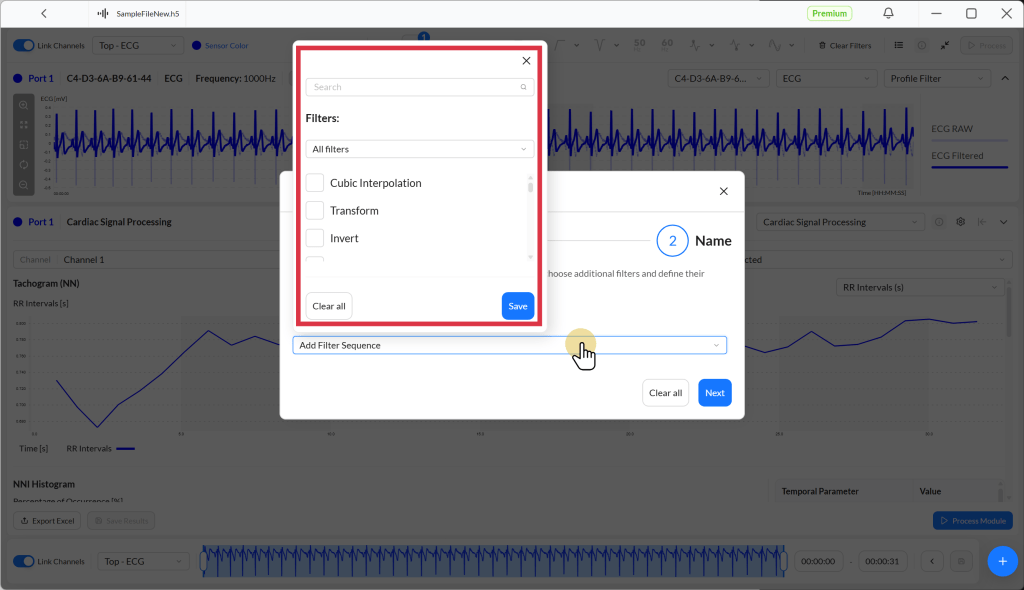
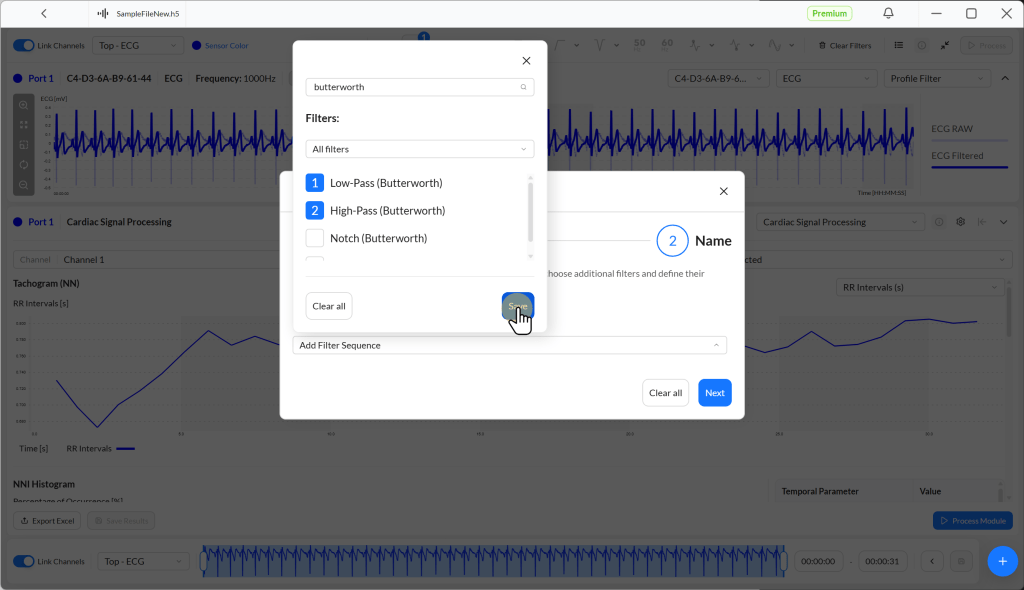
The selected filters are applied in the order you select them. Their order is shown as a blue number.
For example, in the selection below, the input signal first passes through a Low-Pass (Butterworth) filter and then through a High-Pass (Butterworth) filter. Click Save to confirm your selection.
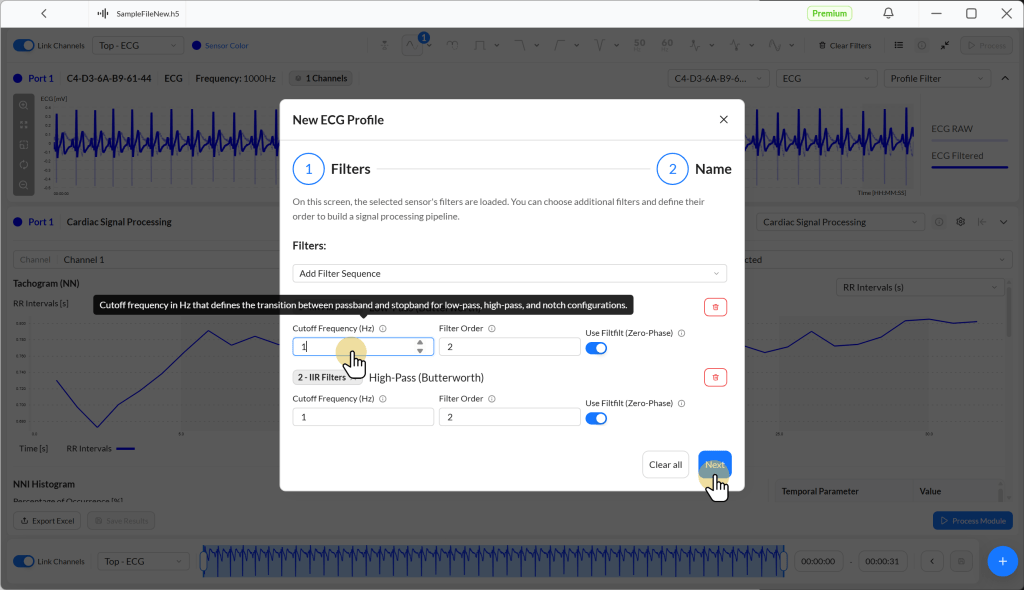
Configure your filters. Tooltips guide you through all available parameter inputs. Click Next once you’re ready.
Name your profile and click Create profile.

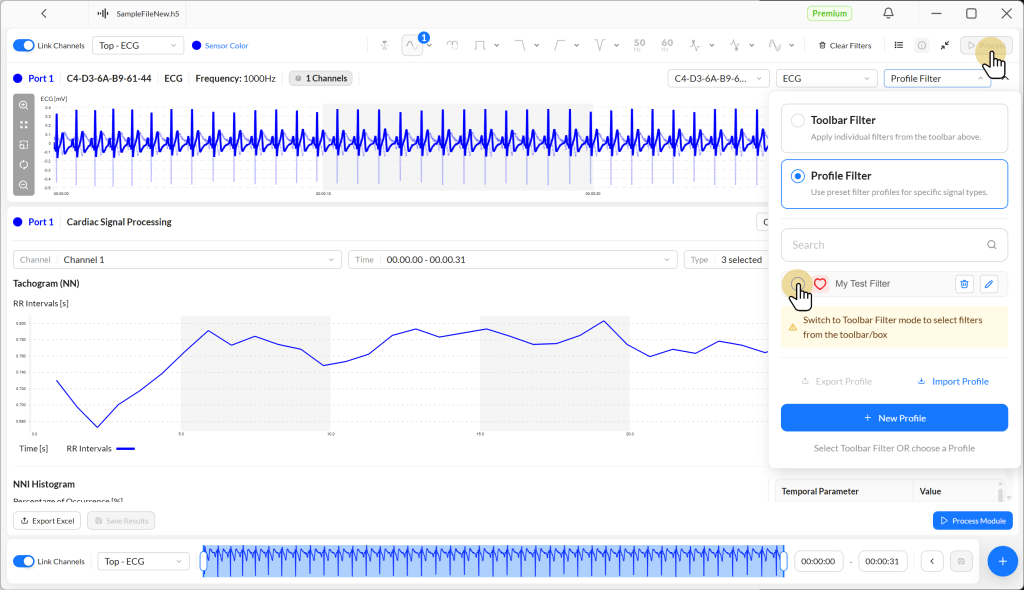
You’ll find your profile in the Profile Filter menu. To apply it, select the radio button next to it and click Process.
Selecting Input Signals & Applying Profiles
Select the input signals for the Signal Processing Toolbox from the signal drop-down list in the top-right corner of the processing screen.

For sensors with a single signal, Filter Profiles are automatically applied to that signal.
For signal bundles with multiple signals (such as accelerometers with separate X, Y, and Z axes), you can:
- Disable Link Channels to manually select which signals should be processed from the dropdown menu
- Enable Link Channels to apply the profile to all signals simultaneously
Datasheet
The datasheet describes the technical implementation of all filters available in Filter Profiles and in the Signal Processing Toolbar, including their input parameters, valid ranges, formulas, and the referenced scientific literature.
