

OpenSignals has known issues with Bluetooth stability on macOS, both with BITalino and biosignalsplux devices, particularly on Apple’s ARM-based processors and in newer macOS versions. On this page, you’ll find all the issues, fixes, and workarounds.
Recommendation: As macOS Bluetooth restrictions tighten with each update, we strongly recommend Windows machines for OpenSignals recordings. macOS systems can still be used for signal visualization and processing after the recording sessions.
Why are there Bluetooth limitations on macOS?
Apple has progressively tightened its control over Bluetooth classic on macOS, especially on computers with Apple Silicon chips and newer macOS versions (both from late 2020 onwards).
macOS aggressively manages Bluetooth connections to support these features, causing applications like OpenSignals that follow traditional Bluetooth management to behave differently.
What are the know issues?
When OpenSignals tries to connect to your PLUX device via Bluetooth, macOS’s Bluetooth may conflict with OpenSignals’ requests and cause Bluetooth connection issues among others:
- Issues finding new devices
- Issues adding new devices
- Initiating recordings
What macOS versions are supported?
The OpenSignals Bluetooth connectivity experience varies depending on the macOS version:
- Stable on macOS Catalina (10.15) or earlier
- Somewhat stable on macOS Big Sur (11) and Monterey (12)
- Problematic Ventura (13) and later
Bluetooth issues are particularly common on Apple Silicon (M1/M2/M3/M4) Macs.
Troubleshooting
General Advice
We recommend using Windows for signal recordings with OpenSignals. macOS systems can still be used for signal visualization and processing after the recording sessions.
The majority of macOS-related issues are known to be linked to the following conditions:
- When adding new devices: Device is not yet connected to the macOS Bluetooth manager before adding it to OpenSignals
- When starting recording modes: Device is already actively connected via Bluetooth and blocks recording start attempts
You can check the status of the Bluetooth connection here:
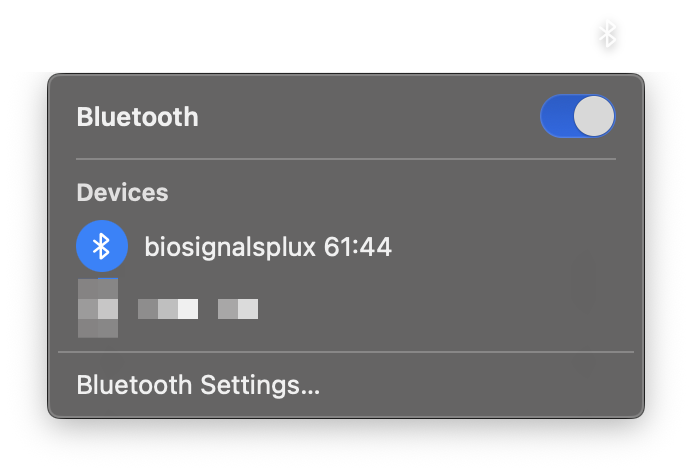
When adding new devices, make sure your PLUX device is connected to the macOS Bluetooth manager.
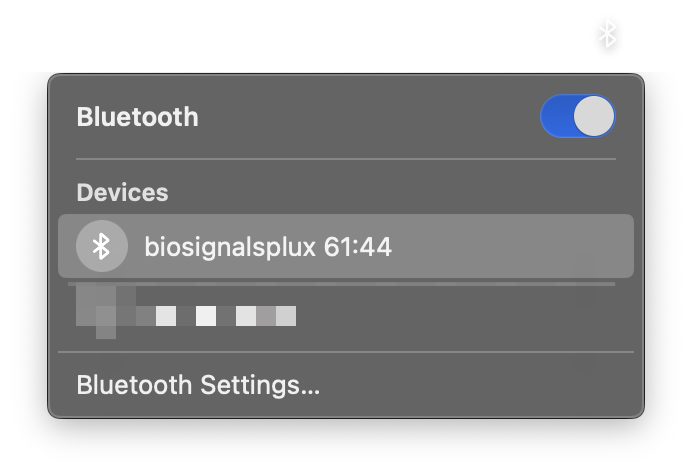
When entering recording mode, ensure your device is disconnected from the macOS Bluetooth manager.
There are also other factors that impact your Bluetooth experience:
- Avoid the use of other Bluetooth devices simultaneously connected to your macOS, such as peripherals (mouse, keyboard), headphones, or other accessories
- Deactivate Continuity features on macOS. These Apple ecosystem features rely on Bluetooth and are prioritized by the OS, putting others in the background
Adding your device to OpenSignals
First, turn on your PLUX device. Next, connect it to the macOS Bluetooth manager first.
Note that this conneting your PLUX device to the macOS Bluetooth manager first is crucial for the device to successfully appear and connect in OpenSignals.
Access the Bluetooth settings via (Apple icon) > System Settings … > Bluetooth, and check that your device is listed under Nearby Devices. Once listed, click on connect:
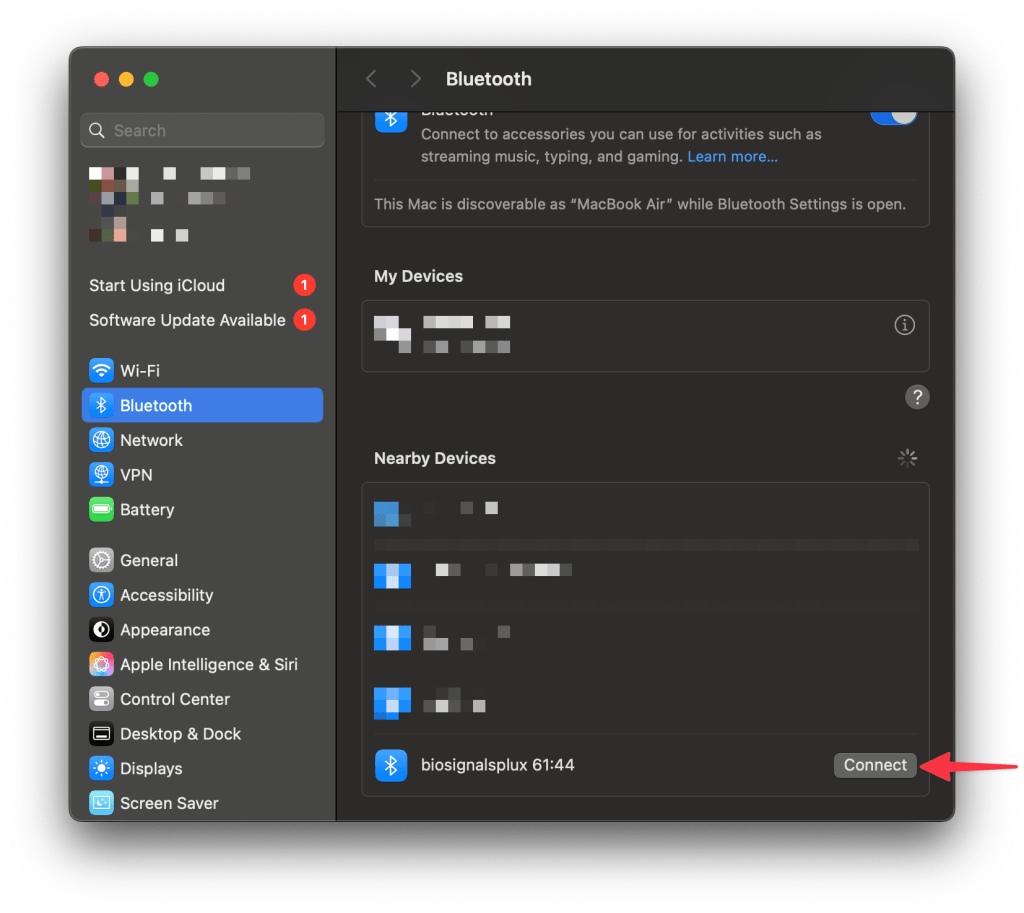
Should you be prompted to enter a pairing code, enter 1234
Next, open OpenSignals and enter the device manager.

Wait for your device to appear and be connected in the device manager.
Adding a device to OpenSignals fails
If OpenSignals finds your device and lists it in the device manager, but fails to connect to it, try the following things in the exact order:
- Ensure your device is turned on
- Ensure you’ve followed the previous steps of pairing the PLUX device to the macOS Bluetooth manager
- Ensure your device stays connected in the macOS Bluetooth settings (must be blue)
Grey = Bluetooth connection not established
Blue = Bluetooth connection established
- If connection attempts fail while the Bluetooth connection is established, disconnect your PLUX device from the Bluetooth settings and try to reconnect via OpenSignals again
Recording signals
Other than the initial process of adding a device to OpenSignals, where the PLUX device must be connected through the macOS device manager in order to be findable in OpenSignals, the device must not be connected to macOS before starting a recording.
Ensure it’s disconnected from the macOS Bluetooth manager.
Grey = Bluetooth connection not established
Once disconnected, enter the signal recording mode in OpenSignals as follows:

Monitoring Bluetooth connections after recordings
After closing your recording session, OpenSignals also attempts to cut the Bluetooth connection. However, the time it takes for macOS to actually release the Bluetooth connection varies (sometimes it does it immediately, sometimes it can take multiple seconds).
Attempting to initiate a new recording while the Bluetooth connection from the previous recording is still active will result in the new recording failing to start.
In these cases, you’ll see one of the following error messages:

FAQs
Systems like biosignalsplux come with a Bluetooth dongle for Windows machines. However, it’s not possible to use those for macOS as macOS systems are limited to the internal Bluetooth modules instead.
We strongly recommend Windows for signal recordings, while macOS can serve well for post-recording activities like signal visualization and post-processing.
It’s possible to improve your Bluetooth experience slightly by turning off the following features of the Apple ecosystem, as all these features rely on Bluetooth communications and will be prioritized by macOS:
- Continuity
- Handoff
- iPhone as camera and/or microphone for macOS
Bluetooth performance is severely limited when multiple hardware types compete for Bluetooth bandwidth.
We recommend disconnecting equipment like peripherals (mice, keyboards) and other accessories (AirPods, headphones, etc.) to reserve bandwidth for your PLUX devices.
When macOS enters sleep mode while OpenSignals is on, for example, when you log off or close your laptop, it cuts Bluetooth connections to OpenSignals.
This results in multiple connection issues after returning from sleep mode, regardless of Bluetooth connection status in the macOS Bluetooth device manager.
We strongly recommend restarting OpenSignals after returnign
No. We are currently putting our development efforts into the new Biosignals Studio were a functional codebase for Bluetooth Classic on macOS is already in development. Follow the support article for up-to-date information on when Biosignals Studio is coming to macOS.
