
Keeping your Smart Sensor for your Biosignals PRO system up to date ensures optimal performance, bug fixes, and compatibility with the latest sensors and features.
This article is for Biosignals PRO sensors only. biosignalsplux and BITalino are analog sensors and do not have firmware that can be updated.
For this process you’ll need:
- 1x Biosignals PRO device (with > 50% battery charge)
- 1x Smart Sensor
- 1x Windows PC
- 1x Bluetooth Dongle (e.g., TP-Link UB500)
- Biosignals Studio software
Update Instructions
We recommend checking for available firmware updates for your Biosignals PRO first, before updating your sensor hardware. You can find instructions here.
Turn your device on, connect the sensor you want to update, and open the Biosignals Studio software.
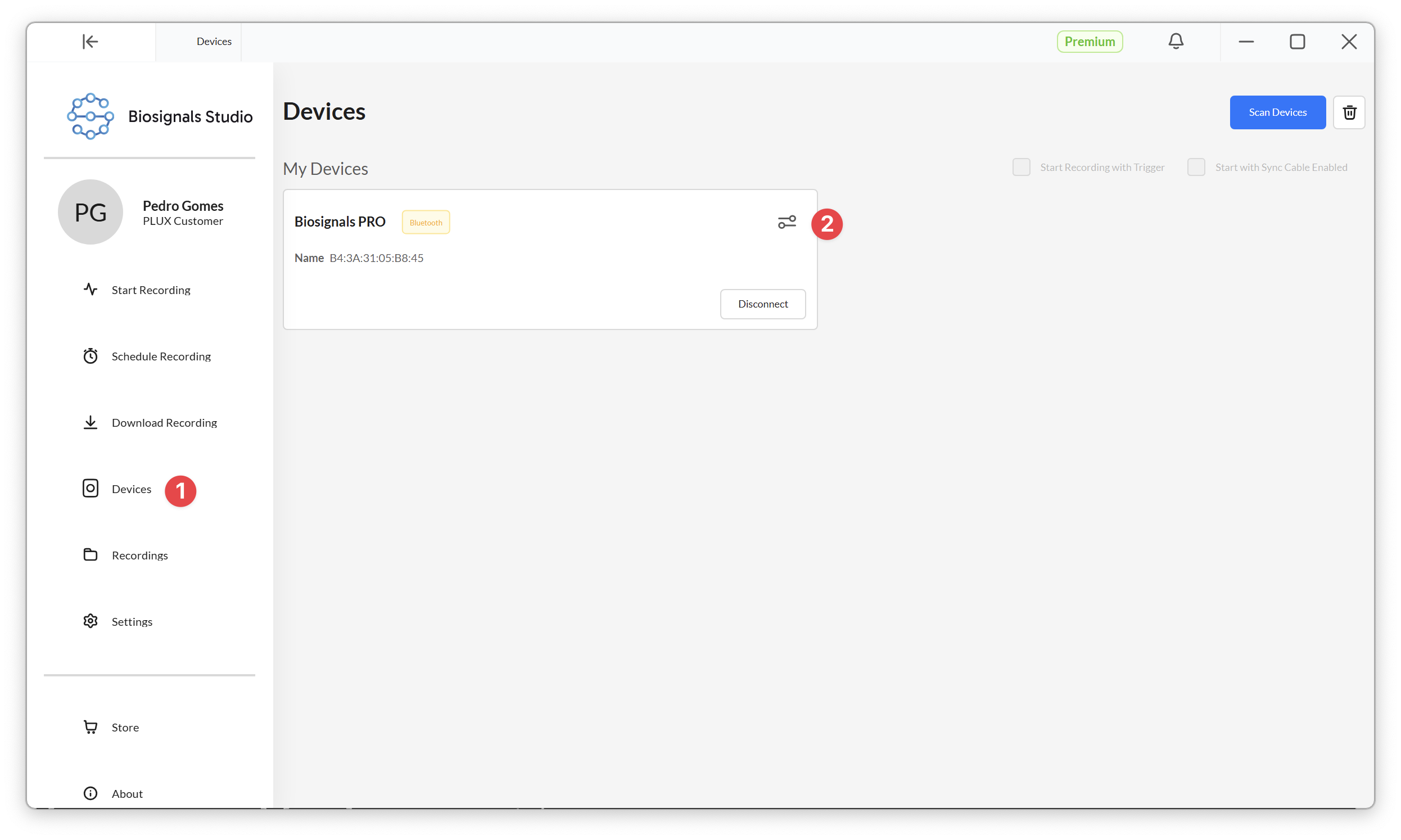
Select Devices in the sidebar menu to enter the device manager (1). Connect to your device, and open the device settings (2).
Enter the sensor settings (3) of the sensor you want to update (< or > button next to the sensor).
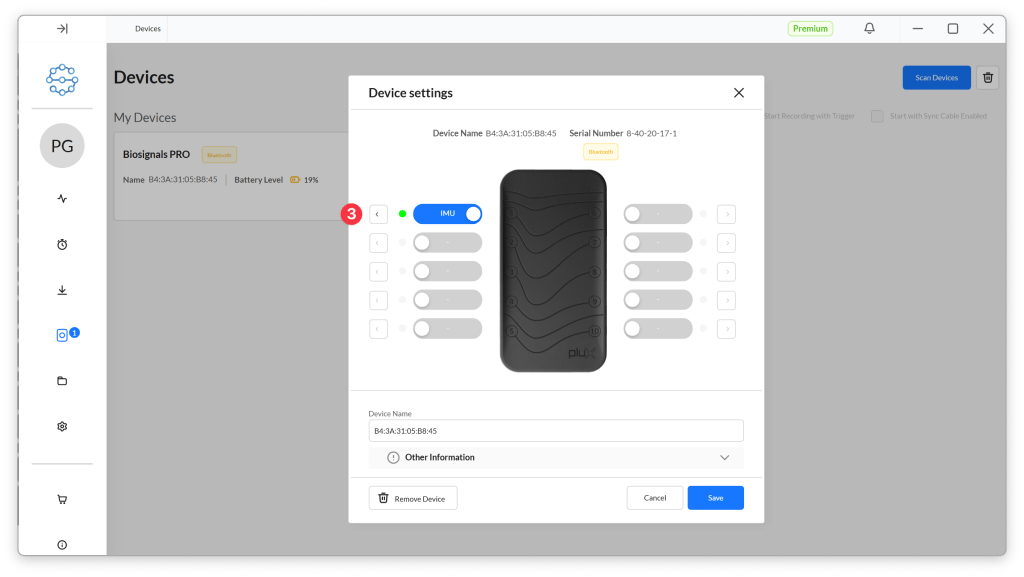
Select Update Firmware.

Select the latest firmware version (if multiple are available) from the dropdown list (4) and click Update (5).
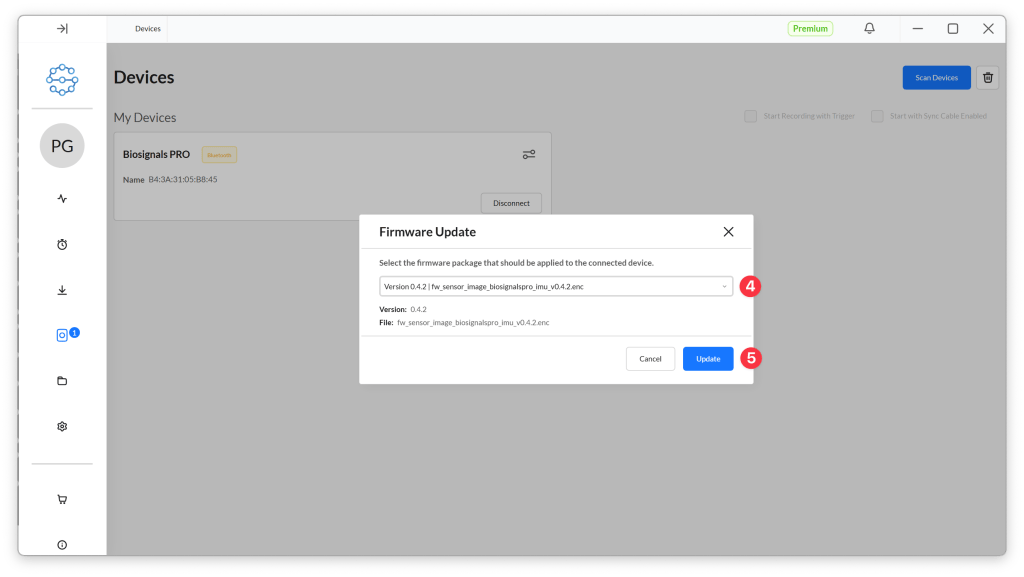
Proceed with the prompts of the update process.
Once the update has been successfully completed, you should see the Firmware Update Completed information as seen in the following screen. Click Dismiss to exit the firmware updater.

Note that the firmware update restarts the Smart Sensor, which is why you’ll see a new notification stating that a sensor was disconnected and then reconnected to your device.
