

This article helps you set up your devices on different operating systems for the best Bluetooth reliability.
And for those cases where you experience Bluetooth issues, it guides you through the most common sources and solutions.
Windows
Most computers already come with built-in Bluetooth communication features, yet not all are sufficiently reliable for real-time signal recordings.

biosignalsplux kits and wearables come with a TP-Link UB500 Bluetooth® 5.3 USB dongle, recommended for the best Bluetooth connectivity on Windows computers.
Need a Bluetooth dongle?
Using the TP-Link UB500 Bluetooth dongle resolves most Bluetooth issues.
Get one for free for your biosignalsplux now.
Using the Bluetooth Dongle

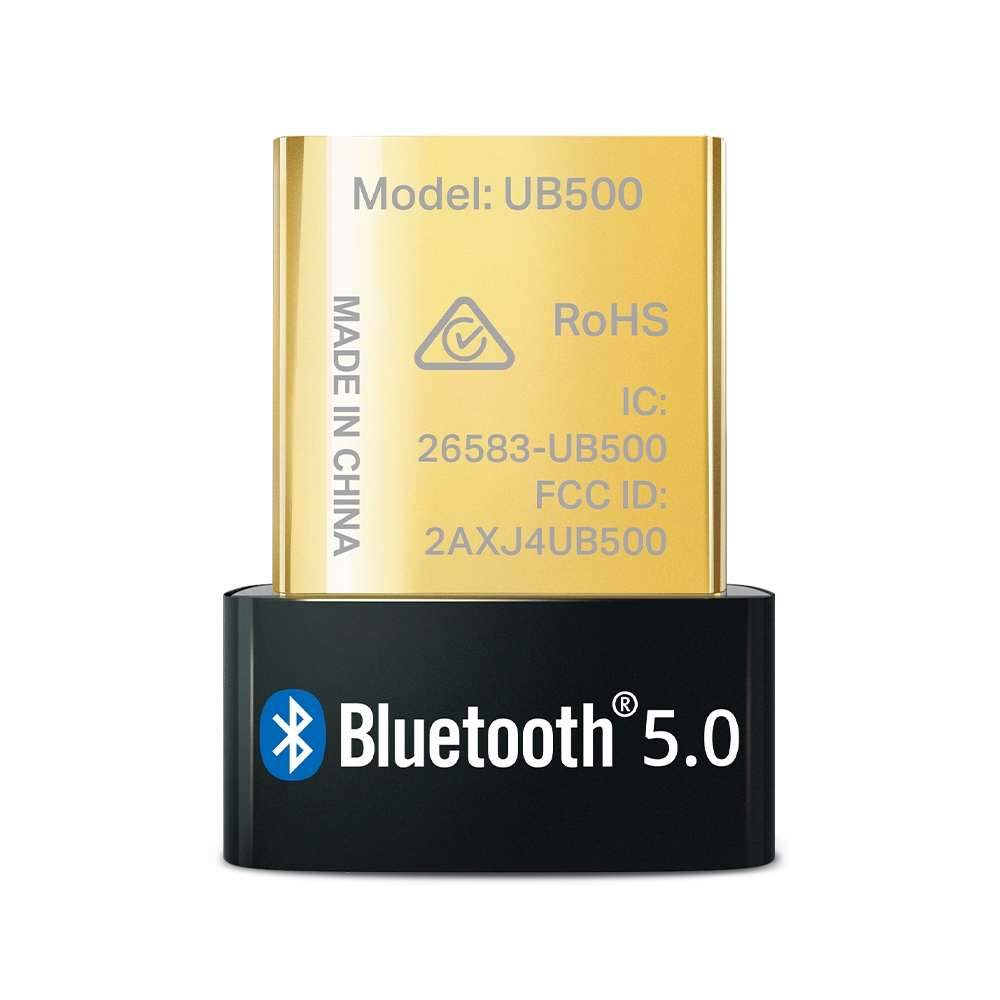
Connect the TP-Link UB500 dongle to your Windows computer. Windows 10 and Windows 11 operating systems with internet access automatically install the Bluetooth dongle correctly right after plugging it in.
A pop-up in the bottom right of your screen should confirm a successful installation and list the name of the installed device correctly in the notification (TP-Link UB500).
You can double-check if your device is correctly installed in the Device Manager > Bluetooth Radios where the dongle should be listed correctly:

Correct installation
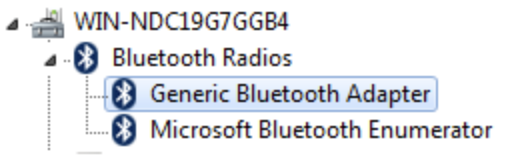
Incorrect installation
Windows requires an active internet connection during the installation process. Should the installation still fail or be incorrect (or if you are using Windows 7), proceed with the manual download of the drivers (download here) and follow the instructions in the offical TP-Link support article.
Avoid Power Saving mode, switch to Performance Mode
Windows’ power-saving mode, or any other mode not configured for optimal performance, can throttle Bluetooth performance as a power-saving measure.
We strongly recommend switching to performance mode to ensure the best availability of your computer’s resources for the best Bluetooth experience.
See the following instructions for your Windows version on how to enable performance mode:
Instructions for Windows 11
- Click Start → Settings (⚙️)
- Go to System → Power & battery (On desktop PCs it may be System → Power)
- Under Power mode, open the drop-down and choose Best performance.
- On the same page, under Related settings, click Additional power settings.
- In Power Options, choose High performance (expand Show additional plans if needed).
If you don’t see it, click Create a power plan → select High performance → Next → Create
Instructions for Windows 12
Click Start → Settings (⚙️).
Go to System → Power & sleep.
On the right (or bottom) under Related settings, click Additional power settings.
In Power Options, select High performance (expand Show additional plans if you don’t see it).
If it’s missing: Create a power plan → choose High performance → Next → Create.
Additional information for any windows version:
- Performance modes use more power and may spin fans up; plug in for best results.
- On some laptops, manufacturer apps (e.g., Lenovo Vantage, Dell Power Manager) can override Windows power mode—set them to Performance as well if present.
Connect your device to OpenSignals
Download and install our OpenSignals software and turn on your device. Enter the device manager.

OpenSignals automatically scans for available devices and connects to them. If your screens looks similar to the following screen, then your device has been connected successfully and is ready for use.

I am using the PLUX APIs. How do I connect to my device?
After configuring the Bluetooth dongle, follow these steps to pair your biosignalsplux device:
- Open the “Bluetooth & Other Devices” settings on your computer.
- Select “Add Bluetooth or other device” and choose Bluetooth to search for nearby devices.
- When your biosignalsplux or BITalino device appears, click on it.
- Enter the pin code 1234 for devices with firmware version 3.8 or newer (or 123 for older firmware versions)
- If successful, the device will appear in your Bluetooth devices list
macOS
Pair your device with macOS
Pair your device with macOS before proceeding with OpenSignals or our APIs. Enter the bluetooth settings under System settings… > Bluetooth.
Wait for your device to appear under Nearby Devices and click Connect. Enter the pin code 1234 for devices with firmware version 3.8 or newer (or 123 for older firmware versions).
Important notes on macOS Bluetooth behavior
Bluetooth communication between PLUX devices and macOS do not require a permanent Bluetooth connection while the devices are idle.
After pairing the device with your macOS computer, it’s normal for the device to be listed as Not Connected shortly after.
There is no need to manually reconnect to the device as our OpenSignals software and APIs handle the connections automatically as needed. Attempting to reconnect manually can cause connection conflict between OpenSignals and macOS.
Connect your device to OpenSignals
Download and install our OpenSignals software and turn on your device. Enter the device manager.
OpenSignals automatically scans for available devices and connects to them. If your screens looks similar to the following screen, then your device has been connected successfully and is ready for use.
Tips for Bluetooth Performance Improvements
Bluetooth performance can be impacted by system settings, third-party apps and hardware, and other factors.
The tips below overcome the most common Bluetooth issues found in varieties of different research lab settings:
Disable your PC’s internal Bluetooth module (Windows)
Using a PC with an internal Bluetooth module and a Bluetooth dongle in parallel can cause unexpected issues as your device might be connecting to the wrong Bluetooth input of your PC.
We recommend turning off your internal Bluetooth module to ensure your PLUX devices are always connected to the Bluetooth dongle as intended:
- Unplug the Bluetooth dongle
- Go to the Start > Device Manager
- Identify the Bluetooth module (example: Intel® Wireless Bluetooth®) under the Bluetooth Radios category
- Right click the Bluetooth module and select Disable device
- Plug in your Bluetooth dongle again
Avoid battery saving mode on your laptop (Windows)
Energy saving modes on Windows computers can often limit Bluetooth communication in order to meet its power saving goals or to prioritize other applications and system functions.
Use the performance mode over the battery saving mode (or best battery life mode) for best Bluetooth experiences.
You can access these settings in Start > Settings > System > Power & Battery
Limit other Bluetooth peripheries
Using other Bluetooth devices such us a mouse, keyboard, or Bluetooth headphones while conducting real-time recordings reduces the available Bluetooth bandwidth and can negatively impact your Bluetooth experience.
We recommend reserving as much Bluetooth availability as possible for your PLUX devices for the best Bluetooth experience by disconnecting other Bluetooth devices during recordings.
Review operating system updates
Windows (Update)
Check for Windows updates with Bluetooth improvement features.
macOS (Maybe don’t update… yet)
As the yearly major macOS updates frequently impact Bluetooth communications, which can cause incompatibilities with our devices, we advise to not update your acquisition computer to the latest version of macOS right away.
Try on Another computer or restart your computer
If issues persist, test the biosignalsplux device on another computer. This will help determine if the issue is related to the PLUX device or the specific computer setup.
Also, restarting your computer can often help solving system issues that are impacting your Bluetooth performance.
Close third-party Bluetooth applications
Ensure that no third-party connections control Bluetooth communications as these can prioritize other Bluetooth devices over your PLUX devices. This can lead to Bluetooth instabilities.
Adjust recording conditions
Reliability of Bluetooth communications also depends on the availability Bluetooth bandwidth and distance.
Lower acquisition settings, such as reducing the sampling rate, and reducing the distance between your PLUX device(s) and your computer improve communication reliability.
Check for possible external factors
Some labs (specially in engineering departments) often have other wireless technologies which overlap with Bluetooth frequencies.
Check if your lab or any of the surrounding labs is using wireless technologies that are impacting your Bluetooth experience.
